



Configuration Guide for the AVM FRITZ!Fon MT-F
This guide is suitable for FRITZ!Fon MT-F DECT handsets.
What we'll cover:
- Registering a FRITZ!Fon handset with a FRITZ!Box router
- Managing a registered FRITZ!Fon handset
Not what you're looking for? Try the FRITZ!Box NodePhone guide.
Registering a FRITZ!Fon handset with a FRITZ!Box router
When you turn on your FRITZ!Fon for the first time, it will begin the registration process. The screen will display a prompt to 'Hold the DECT button on the FRITZ!Box down'. This is a convenient way of quickly associating the FRITZ!Fon with the FRITZ!Box.
- When the FRITZ!Fon has been fully charged, turn the device on by pressing and holding down the end call button.
- You will be prompted to hold the DECT button on the FRITZ!Box.
- Continue holding the DECT button on the FRITZ!Box until the device is registered.
Your FRITZ!Fon will now be registered to the FRITZ!Box. If a NodePhone account has been previously set up, you will be able to make calls through the now-registered phone. If a NodePhone account has not been configured, see our NodePhone guide for FRITZ!Box routers to set one up.
Managing a Registered FRITZ!Fon
Step 1
- Ensure that your computer is connected to your FRITZ!Box and you have access to the internet.
- Open your preferred web browser, for example: Internet Explorer, Google Chrome, or Mozilla Firefox.
- Enter the following number into the address bar and then hit Enter on your keyboard:
- 192.168.178.1 (this number is called an IP Address).
 |
| Figure 1: Entering the address to access the router |
Step 2
- The FRITZ!Box Log In page will open. You will be prompted for a password.
| Password: | admin |
|---|---|
| This is the router's default password. We recommend that you change the password for security reasons. |
|
- Once you have entered the password, click Log In.
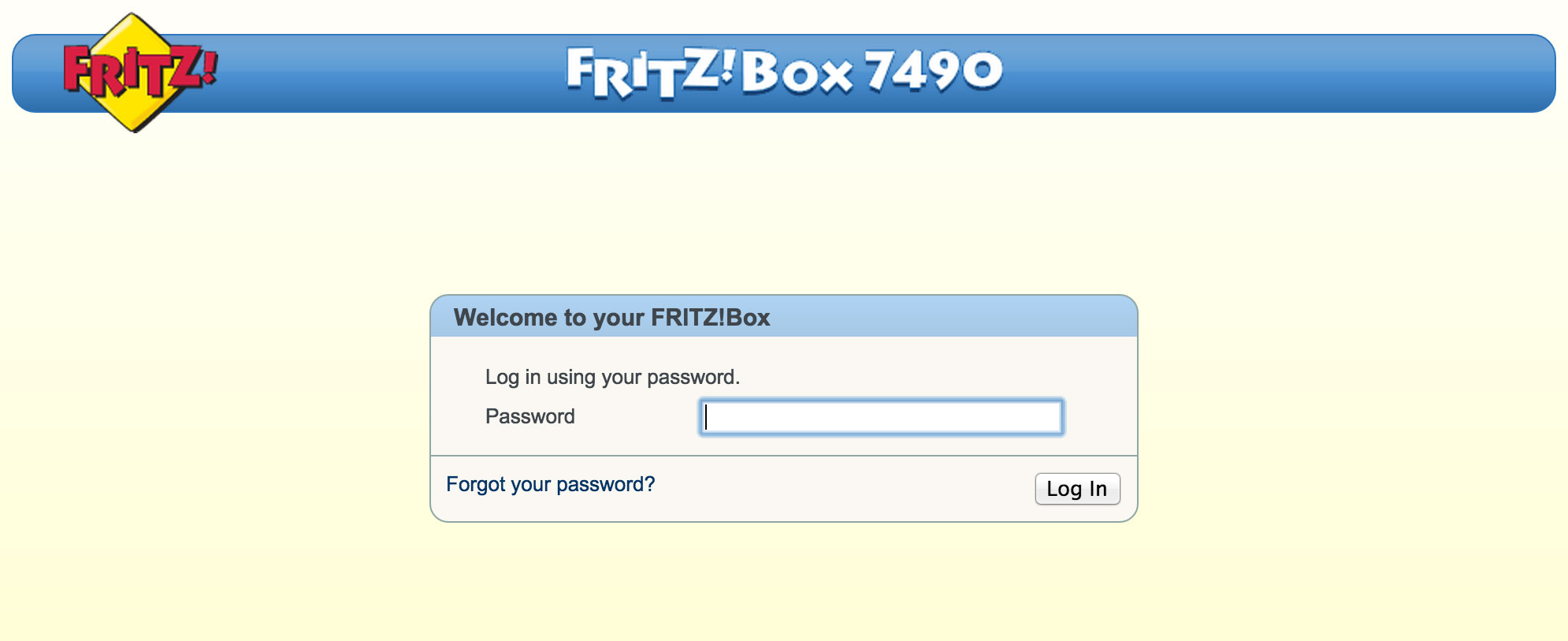 |
| Figure 2: The FRITZ!Box Log In screen |
If the default password does not work, it has likely been changed. If you do not know the password, you will need to factory reset your FRITZ!Box before you can access the user interface.
You can reset the FRITZ!Box to factory settings by clicking Forgot your password? and then Restore Factory Settings. Please note that this will overwrite all of your settings.
Once you have reset your FRITZ!Box to factory settings, you will be redirected to the setup wizard.
Step 3
- Once you are logged into the FRITZ!Box, select Wizards from the menu to the left of the screen.
- Click Manage Telephony Devices. The registered FRITZ!Fon will appear in the Manage Telephony Devices table. You can ensure you are configuring the correct device by checking the name in the main screen of the FRITZ!Fon to the name in the device table.
- Click Edit next to the device you would like to configure.

Step 4
- Select your NodePhone account from the drop-down list next to Outgoing Calls.
- Choose React to all Numbers.
- Click Next and then OK to complete the wizard.
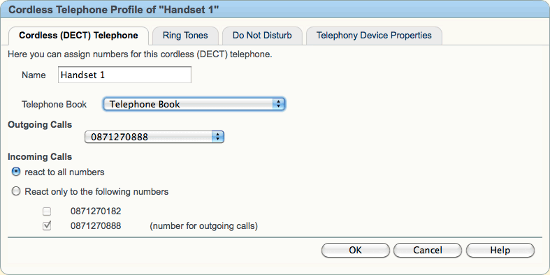 |
| Figure 3: Changing the NodePhone account your handset will use |
If you have multiple NodePhone accounts, it's possible to choose React only to the following numbers. This will allow you to specify which number, when dialled, will cause this phone to ring.
You should now be able to make VoIP calls from the specified NodePhone account using the registered FRITZ!Fon. If you ever need to change which account this phone uses or any other features of the phone, you can come back into 'Manage Telephony Devices' at any time.
Further Assistance
If you're looking to also set up your NodePhone service for your FRITZ!Box router, please refer to our other guide:
If you are having trouble setting up your handset, or would like to clarify some of the steps, please contact our Support Team.
