



NodePhone Configuration for Billion 6404VGP, 7402VGP, and 7404VGP-M Routers
This guide is suitable for Billion 6404VGP, 7402VGP, and 7404VGP-M routers.
What we'll cover:
- Connecting cables
- Logging into your router
- Setting up your NodePhone service
- Advanced configuration, such as dial plans
Not what you're looking for? Try the ADSL Setup Guide or the Wireless Setup Guide.
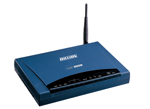 The Billion 6404 series are Ethernet VoIP routers used on Internode's Fixed-Wireless broadband services.
NodePhone Cable Setup
The following steps will set up NodePhone with a "fallback" to your regular (PSTN) telephone service. This will allow you to switch between your NodePhone service and the PSTN service.
When dialling out through NodePhone, you will hear a distinctive dial-tone, which sounds like a long hum. On most handsets, pressing the # key will switch between your NodePhone service and your PSTN service.
If you have a Naked, Fibre to the Premises, or Fixed-Wireless service, simply complete Step 2.
- Connect a phone cable between the Local Phone port on the ADSL splitter and the Line port on your Billion modem.
- Connect your telephone handset to the port on the router marked with a picture of a handset. Some modems may have a second socket for another handset to be connected.
Configuring your NodePhone VoIP service
Step 1
- Make sure that your computer is connected to your router with an Ethernet cable.
- Open your preferred web browser, for example: Internet Explorer, Google Chrome, or Mozilla Firefox.
- Enter the following number into the address bar and then hit Enter on your keyboard:
- 192.168.1.254 (this number is called an IP Address).
 |
| Figure 1: Entering the IP address to access the router |
Step 2
- The modem Log In page will open. You will be prompted for a username and password.
| Username: | admin |
|---|---|
| Password: | admin |
| This is the router's default username and password. We recommend that you change the password for security reasons. |
|
- Click OK to log in to the router.
Step 3
- Select Configuration from the menu to the left of the screen.
- New options will appear underneath Configuration. Select VoIP from the new options.
- Further new options will appear. Select Wizard from the menu, underneath VoIP.
Step 4
- Enter the following information into the corresponding fields:
| DSCP Marking: | Premium |
|---|---|
| SIP Service Provider: | NodePhone |
| Phone Number: | Your NodePhone Number. Ensure that you include the area code and that there are no spaces in the number, for example, 0812345678 |
| Authentication Username: | Your NodePhone Number. Ensure that you include the area code and that there are no spaces in the number, for example, 0812345678 |
| Authentication Password: | Your NodePhone Password. |
- Click Apply to apply your changes.
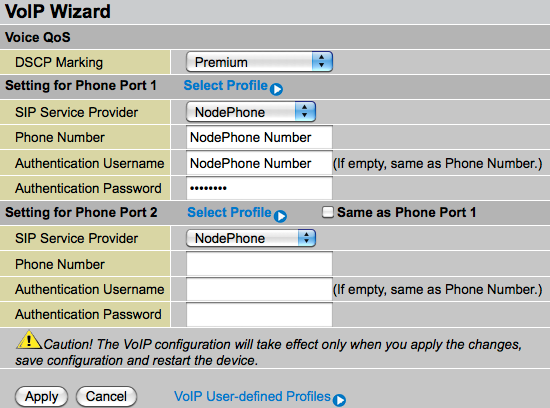 |
| Figure 2: Entering NodePhone configuration details |
Step 5
- Click the Save Config button at the bottom right of the screen.
- You will be asked to confirm that you wish to save the changes. Click Apply to save your settings to the modem.
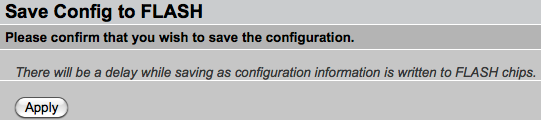 |
| Figure 3: Saving your settings |
Congratulations! You have successfully configured your NodePhone service.
Advanced Configuration and Troubleshooting
If you are experiencing problems with NodePhone, it is strongly recommended that you update your modem's Firmware (the software that the modem runs) to the latest recommended version, and check your Dial Plan and DTMF settings.
Firmware Update
It is highly recommended that you ensure your Billion router is running the current firmware version supported by Internode. The current recommended firmware can be downloaded from the Internode File Download Mirror.
NOTE: The firmware version recommended by Internode may be different from the firmware versions available on the Billion website.
Updating the firmware on your Billion router:
- Download the latest firmware from the Internode File Download Mirror (select your Billion router model, then navigate to firmware then current) and save the file somewhere on your computer for easy access - such as your Desktop, or a temporary folder.
- Log into your Billion router. Select Configuration from the menu, then System.
- Select Firmware Upgrade.
- Click the Browse button and locate the firmware file you downloaded to your computer.
- Once you have selected the firmware file, click Upgrade.
- A status bar will show the upgrade process - this will take a couple of minutes.
- Once the upgrade has completed, you will be asked if you would like to restart with current settings, or restart with factory defaults:
- Reset to factory default settings - choose this if you are upgrading your firmware to resolve a problem with your router (for example, NodePhone call problems). This will remove all your ADSL and NodePhone settings, and you will need to set up your router again. This setting is recommended if you need to make sure that no configuration problems are carried over with your firmware update.
- Reset with current settings - choose this if you are not experiencing any problems with your router, and you are simply upgrading firmware as part of routine maintenance.
- The router will display a countdown timer. This will show how long the router takes to restart.
Once your modem has restarted, you should be able to browse the Internet and make calls as normal - unless you reset to factory default settings. In this case you will need to set up your router again.
Dial Plans and Configuration Files
Dial Plans allow certain types of calls to go through your traditional telephone service (if you have one), or to "fall back" to your traditional telephone service in the event of a broadband or mains power outage.
There are two types of dial plan configurations:
- The Lifeline configuration - which falls back to a standard telephone service for 000 and 1300 calls, and in the event of power or broadband outages, and
- The VoIP Only configuration, if you do not have a standard telephone service.
If you use the VoIP Only configuration, consider alternative methods for calling 000 emergency services - such as a mobile phone - in the event that the NodePhone service, your broadband connection, or mains power is unavailable.
Updating your dial plan:
- Download your chosen dial plan configuration file from the Internode File Download Mirror (select your Billion router model, then navigate to configs) and save the file somewhere on your computer for easy access - such as your Desktop, or a temporary folder.
- Log into your Billion router. Select Configuration from the menu, then System.
- Select Backup/Restore.
- In the Restore Configuration section, click Browse… and locate the configuration file you downloaded.
- Click Restore to load the configuration file.
DTMF and Voice Mail
For NodePhone's Voice Mail feature to work correctly, your VoIP hardware must support the RFC2833 DTMF Standard. Most VoIP equipment already supports this standard. Billion 6404 and 7404 routers (sold before 23 April 2007) may need a firmware and configuration update.
To update DTMF settings:
- Ensure that your firmware is up to date.
- Log into your Billion router. Select Configuration from the menu, then VoIP.
- Select Phone Port, then locate Phone Port 1 and click Edit.
- Under Codec Preference, change the DTMF Method to RFC 2833.
- Click Apply to save the settings and then return to the Phone Port page.
- Repeat from Step 3, but this time edit the settings for Phone Port 2.
- Once you have changed the settings, click Save Config to save the settings.
Further Assistance
If you're looking to also set up your ADSL or Wireless service, please refer to our other guides:
- ADSL Configuration for Billion 6404VGP, 7402VGP, and 7404VGP-M Routers
- Wireless Configuration for Billion 6404VGP, 7402VGP, and 7404VGP-M Routers
If you are having trouble setting up your router, or would like to clarify some of the steps, please contact our Support Team.
