



ADSL Configuration for Billion 7800N Routers
This guide is suitable for Billion 7800N routers.
What we'll cover:
- Connecting cables
- Logging into your router
- Configuring an ADSL connection manually
Not what you're looking for? Try the Billion 7800N Wireless guide.
Billion 7800N Cabling Setup
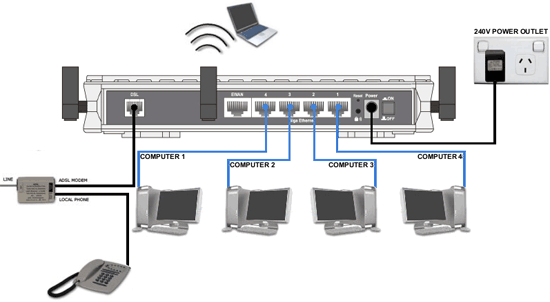 |
| Figure 1: Typical connection of a Billion 7800N router for ADSL |
Connection of your modem will vary depending on whether you have a Standard or Naked ADSL service.
- Connect a phone cable from the Line or Wall Socket port on the ADSL splitter to the telephone socket on your wall.
- Connect a phone cable from the ADSL Modem port on the splitter to the DSL port on the back of the Billion router.
NOTE: Make sure that your cable is less than 3 metres long. Long cables can affect the performance of your service. - Connect your telephone to the Local Phone port on the ADSL splitter.
- Connect one end of the supplied Ethernet cable to the network card on your computer. Connect the other end to one of the Ethernet or LAN ports on the back of the router.
NOTE: Only connect to Ethernet ports 1, 2, 3, or 4. Do not use the EWAN port in this type of setup. - Connect the power supply to the back of the router, and plug it into your 240v power outlet.
- Switch on the router.
Configuring your Internet connection
Step 1
- Make sure that your computer is connected to your Billion router with an Ethernet cable.
- Open your preferred web browser, for example: Internet Explorer, Google Chrome, or Mozilla Firefox.
- Enter the following number into the address bar and then hit Enter on your keyboard:
- 192.168.1.254 (this number is called an IP Address).
 |
| Figure 2: Entering the IP address to access the router |
Step 2
- The modem Log In page will open. You will be prompted for a username and password.
| Username: | admin |
|---|---|
| Password: | admin |
| This is the router's default username and password. We recommend that you change the password for security reasons. |
|
- Click OK to log in to the router.
Step 3
- The Billion status page will be displayed. This will show details including the model of your modem, and the current firmware (the software that runs the modem) version.
- Click the WAN link in the menu to the left of the screen.
Step 4
- Ensure the WAN settings are as follows:
| Protocol: | PPPoE |
|---|---|
| VPI: | 8 |
| VCI: | 35 |
| IP Address: | 0.0.0.0 Your modem will be assigned an IP address automatically when it logs in - even if you have a static IP address. |
| Obtain DNS Automatically | Enable |
| Username: | Your Internode username, for example: username@internode.on.net. If your username does not include @internode.on.net you will be unable to connect. |
| Password: | Your Internode password (Lost your password? Click here!) |
- Click Apply when you have made your changes.
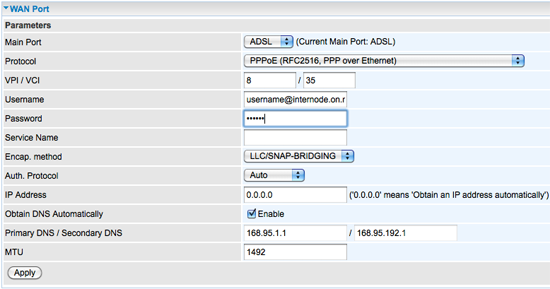 |
| Figure 3: WAN Port Configuration |
Step 5
- Once settings have been applied, you will need to click Save Config from the bottom of the page.
- The Write settings to FLASH page will display. Click Apply: the modem will save your settings.
Congratulations! You have successfully configured your Billion 7800N for ADSL.
Further Assistance
If you're looking to also set up your Wireless or Fetch TV service, please refer to our other guides:
If you are having trouble setting up the modem or would like to clarify some of the steps, please contact our Support Team.
